Touch
Drag with one finger to pan. Pinch with two fingers to zoom. Double-tap to zoom in. The zoom buttons work when a pinch is awkward, and the reset button returns the view to the full map.
Explore Leonida by type and area. Tick things off as you go — your progress saves automatically.
Quick answer
It is a browser-based map of Leonida with pins grouped by category and region. You can search by name, filter the pins, open a location, mark it as found, and share a link to a single pin. The current pins are sample data; verified in-game locations replace them as they are checked.
Sample data — being replaced with in-game locations
The current filters are also written into the URL: ? parameters for cats, regions, unfound, q and pin. That means a filtered view can be bookmarked or sent as a link, and the map restores it on load.
Drag with one finger to pan. Pinch with two fingers to zoom. Double-tap to zoom in. The zoom buttons work when a pinch is awkward, and the reset button returns the view to the full map.
Scroll to zoom, drag to pan, and use the plus, minus and reset buttons. Zoom runs from the full map to 5× so a city block can be separated from its neighbours.
Tab reaches the map controls and the pins. Enter or Space opens a pin, and the arrow controls pan the view. Focus rings stay visible, and dialogs return focus to the control that opened them.
If your device asks for reduced motion, zoom and reset jump without animation instead of sliding. The setting is read from the system preference, not stored on the site.
Each category has a colour and a label. The marker shape is the same so the colour is never the only signal; the detail panel names the category in text.
collectiblesmissionsvehiclesweaponsbusinesseslandmarksactivitiesA pin marked “Sample data” is a placeholder for testing the interface. A pin marked “Verified” has been checked in the released game and carries a source and a check date. Sample pins are never counted as confirmed locations in the guides.
The verification rules are documented in the repository and run as part of the build check, so a verified pin without a source or date fails the release.
Found locations are stored under g6m:progress:v1 in this browser. The guest limit is 50 locations; when it is reached, the map asks you to remove a tick before adding another. There is no account, no cross-device sync and no payment in this release.
Share links contain the pin or filter state, not your progress. A link opened on another device shows the same map view with that device’s own checklist.
3 pins in the atlas
2 pins in the atlas
2 pins in the atlas
1 pin in the atlas
1 pin in the atlas
2 pins in the atlas
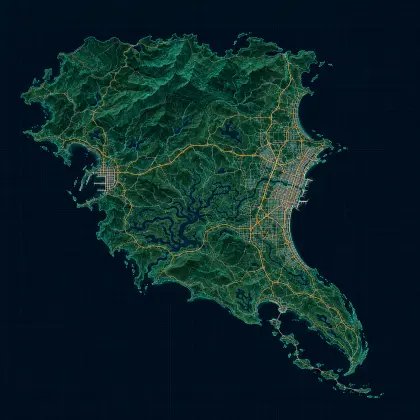
No. GTA6Maps is an independent fan atlas. The region names come from Rockstar’s published material; the coastline is an original schematic and the current pins are sample data.
Yes. Drag with one finger, pinch with two, and tap a pin to open its details. The filter panel becomes a bottom sheet on small screens.
Yes, in this browser. The checklist uses local storage, so a different device or a cleared browser starts empty. There is no account or server copy in this release.
Yes. Open a pin and use the share link. The URL carries the pin ID, so the same location opens for the other person. Your found/not-found state is not included.
Six regions featured in Rockstar’s Leonida material: Vice City, the Leonida Keys, Grassrivers, Port Gellhorn, Ambrosia and Mount Kalaga.
GTA 6 releases on November 19, 2026. Pins are promoted to verified only after a location has been found in the released game and checked against a source, with the date recorded.
The interactive controls need JavaScript, but the region guide, location lists and links are rendered in the page HTML and remain readable with scripting disabled.